Fixing the Hidden Apple ID Passkey Metadata
Several years ago, I created my current iCloud account with an old Gmail address, which I later removed from my Apple Account. Although my Apple Account and all my devices now display only my iCloud address, the old Gmail address still shows up in the iCloud passkey dialog.
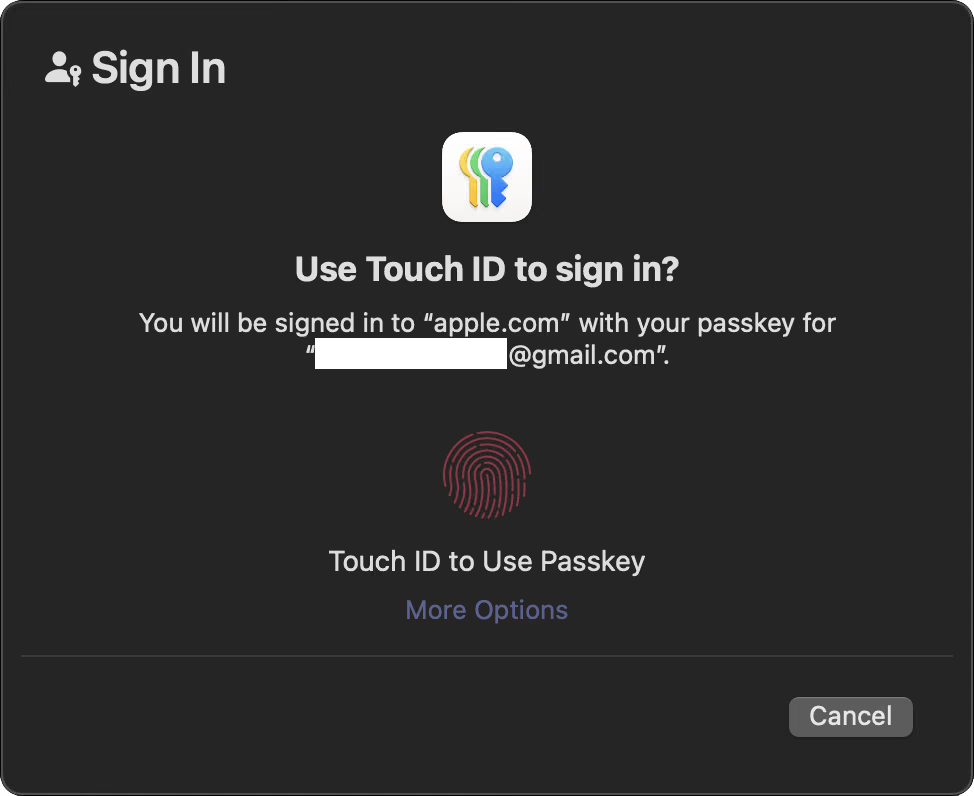
This old email address persisted across all my Apple devices. It’s such an insufferable masterpiece created by Apple.
I’ve found a discussion thread talking about this in the Apple Support Community. But apparently nobody cared enough to investigate it further. So I decided to look into it myself.
At first glance, the most obvious explanation was a stale cache. But that wasn’t the case.
I regularly restart my browsers and devices to get software updates or sometimes a device occasionally shuts down when its battery dies. The Gmail label remained regardless. In addition, the same incorrect label appeared on every device I owned. So it’s persisted by design. I therefore suspected it’s synced through iCloud Keychain in order to be everywhere.
I checked the Keychain Access app on macOS for anything labeled xxx@gmail.com. But I found nothing. I then checked what the Helium browser fell back to, it showed that the credential came from Apple Passwords, which is iCloud synced.
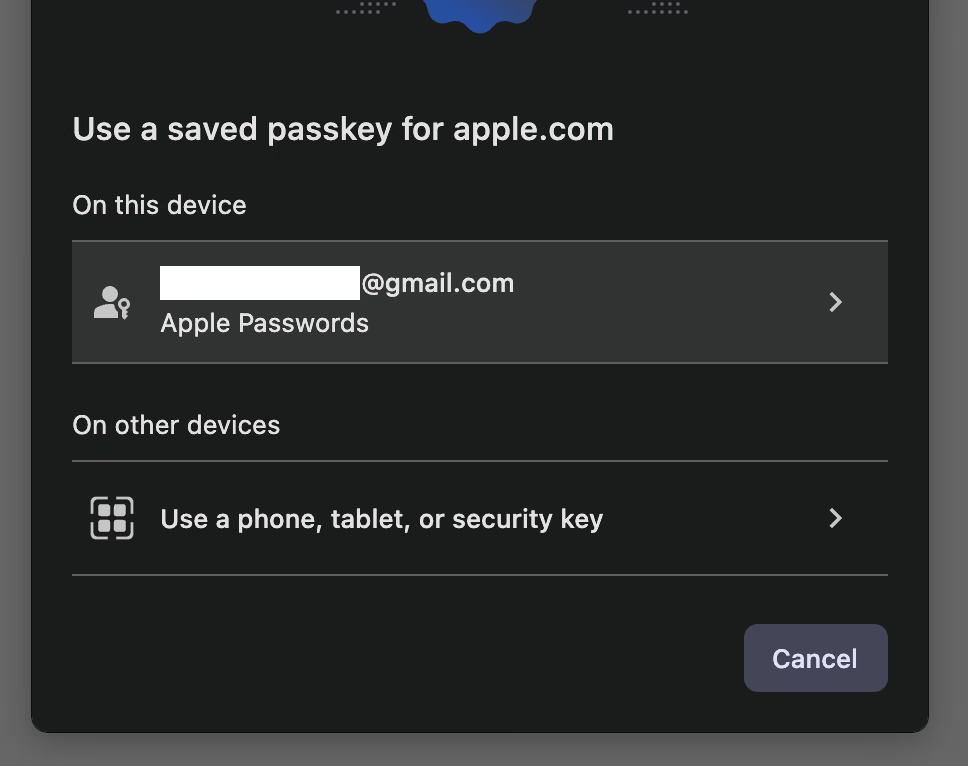
The label is actually metadata.
To understand what was happening, we have to know what a passkey stores.
A passkey contains several different identifiers. The relying-party ID, which is apple.com in this case, identifies the website. The credential ID identifies the key pair information. The user handle identifies the account to WebAuthn. Separately, the credential stores user-facing fields such as name and displayName. These fields in particular are what an authenticator will display in most cases.
This explained why authentication still worked after I changed the Email. So theoretically, we can fix the label without touching any credentials necessarily.
So next I inspected local keychain database where I found at ~/Library/Keychains/{Random GUID}/keychain-2.db. I confirmed that there was a WebAuthn credential in Apple WebKit’s passkey access group. To be safe (I don’t want to break my system and have to restore it), I decided not to edit the database directly.
After messing around for minutes, I found the PublicKeyCredential.signalCurrentUserDetails() API. This API can essentially tell the authenticator to update username or display name, or what I had been calling “labels”, to reflect changes made on the server.
Once I found the right tool, the main challenge was applying it to Apple’s login page at account.apple.com. The next thing was running the API in the correct execution context. Apple’s actual authentication flow runs inside a cross-origin widget on idmsa.apple.com, so you must switch the web console’s execution context to aid-auth-widget.
After all of that, I wrote this script to replace only the passkey’s user-facing label without modifying anything else. The script waits for your next Apple passkey authentication. After authentication with Face ID or Touch ID succeeds, it identifies the passkey and instructs Apple Passwords to replace the displayed email address with the value specified in the NAME constant. It does not modify the associated account, passkey credentials, or private key.
(() => {
    const NAME = "foo@bar.com"; // Replace before running

    if (location.hostname !== "idmsa.apple.com")
        return console.error("WRONG CONTEXT", location.hostname);

    if (!NAME.trim() || NAME === "foo@bar.com")
        return console.error("YOU FORGOT TO SET NAME");

    if (typeof PublicKeyCredential.signalCurrentUserDetails !== "function")
        return console.error("API UNSUPPORTED");

    const proto = CredentialsContainer.prototype;

    if (proto.get.__renameHook) return console.warn("HOOK ALREADY INSTALLED");

    const nativeGet = proto.get;

    function hookedGet(...args) {
        const options = args[0];
        const request = Reflect.apply(nativeGet, this, args);

        request.then(
            (credential) => {
                try {
                    const rpId = options?.publicKey?.rpId;
                    const handle = credential?.response?.userHandle;

                    if (rpId !== "apple.com")
                        return console.error("UNEXPECTED RELYING PARTY", rpId);

                    if (!handle) return console.error("NO USER HANDLE");

                    proto.get = nativeGet;

                    let raw = "";
                    for (const byte of new Uint8Array(handle))
                        raw += String.fromCharCode(byte);

                    const userId = btoa(raw)
                        .replace(/\+/g, "-")
                        .replace(/\//g, "_")
                        .replace(/=+$/, "");

                    PublicKeyCredential.signalCurrentUserDetails({
                        rpId,
                        userId,
                        name: NAME,
                        displayName: NAME,
                    }).catch((error) => console.error("SIGNAL FAILED", error));

                    console.log("API REQUESTED");
                } catch (error) {
                    console.error("FAILED", error);
                }
            },
            () => {},
        );

        return request;
    }

    hookedGet.__renameHook = true;
    proto.get = hookedGet;

    console.log("READY");
})();
READYmeans the script is waiting.API REQUESTEDmeans the rename request was sent. Apple Passwords app will notify that it’s been successfully updated.
But it didn’t work when I first tried it in Safari on macOS. After authenticated with the Apple passkey, the login page became stuck on the loading screen, and I couldn’t sign in. Therefore, it failed.
I thought it was because macOS Sequoia. At that point, I had been using iOS 27 beta for a bit, so I tested it on my Phone. It successfully updated the passkey’s displayed name.
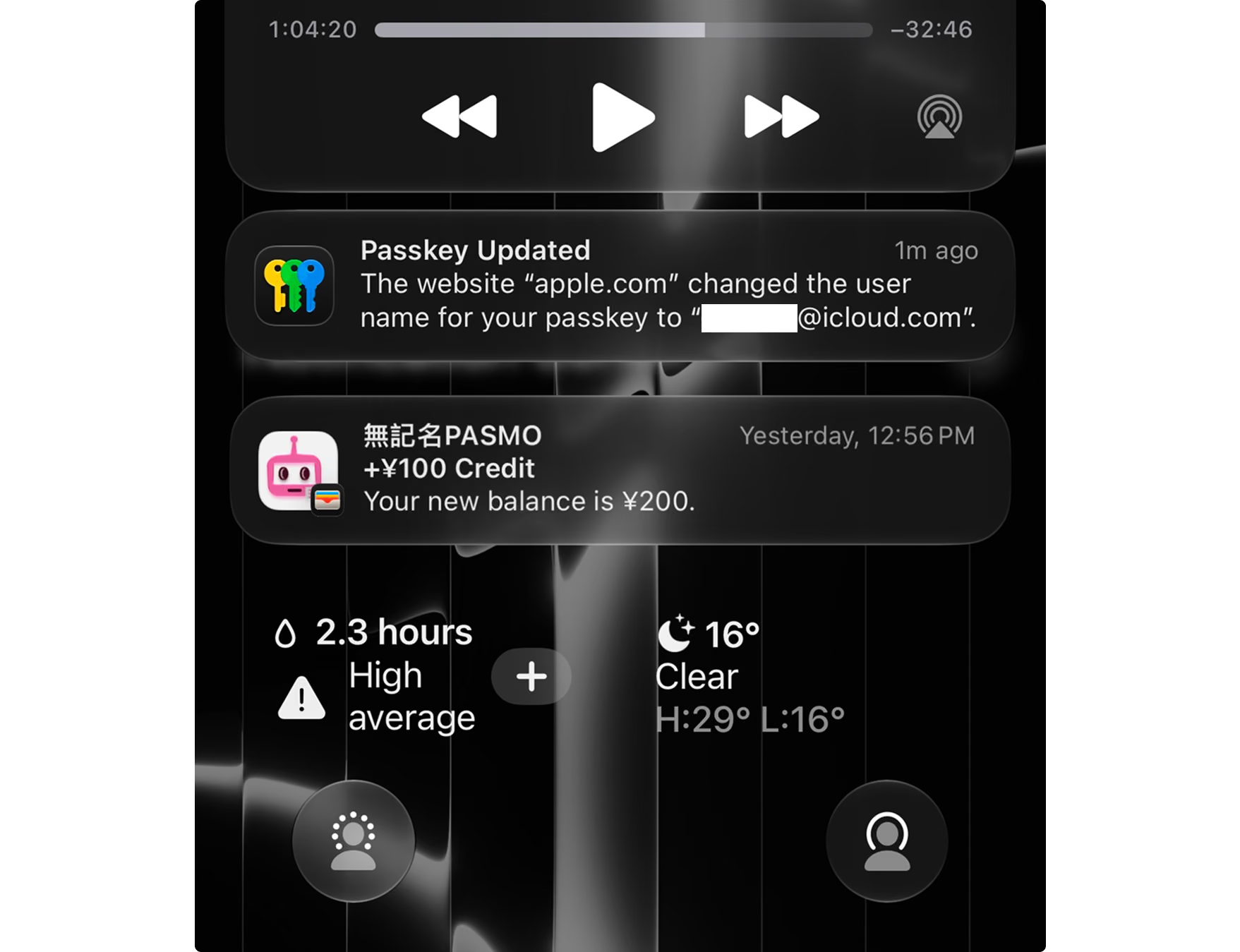
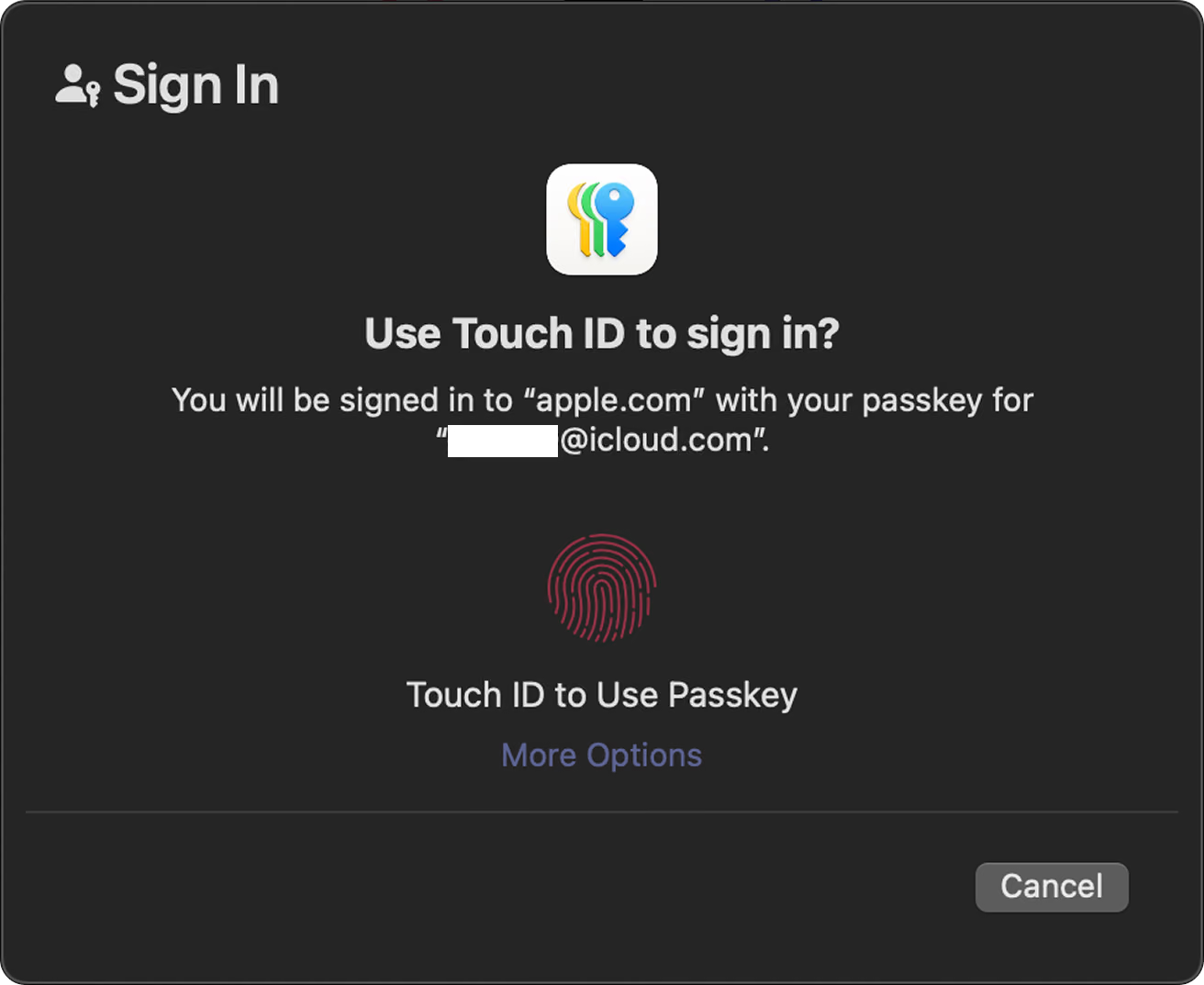
Because the passkey metadata is synchronized through iCloud Keychain, the corrected email address appeared on all my devices.
Last, during the investigation, I also found something interesting. But I think this blog is already long enough, I may cover it next time.